
📌 BLOG POST #4 — Creating Simple Games With AI
Creating Simple Computer Games With AI: A Complete Beginner’s Guide
Build your first game — even with zero coding experience.
Introduction:
AI can help you create simple, fun computer games using easy‑to‑understand code. This guide walks you through the process step‑by‑step.
Full Content:
(For absolute beginners — no coding experience required)
This guide teaches beginners how to use AI as a game‑building assistant that can create:
- Text-based adventure games
- Quiz games
- Guessing games
- Choose‑your‑own‑path stories
- Simple Python games
- Simple HTML/JavaScript browser games
All you need to do is describe the game idea, and AI will generate the code and instructions.
🧩 1. Start With the Core Prompt (The Universal Game Template)
To start you can copy/paste this:
“Create a simple text‑based game for beginners.
Theme: [adventure / treasure hunt / mystery / quiz].
Language: Python.
Make the code easy to understand and include comments.”
AI will generate:
- The full game
- Clear instructions
- Beginner‑friendly code comments
This is the foundation.
🧱 2. Ask AI to Explain the Code (Beginner Mode)
You can say:
“Explain the code line by line so I can understand how it works.”
AI will break down:
- Variables
- Inputs
- Loops
- Conditions
- Game logic
This turns the game into a learning tool.
🎮 3. Ask AI to Add Features
You can say:
- “Add a scoring system.”
- “Add multiple endings.”
- “Add a health bar.”
- “Add choices for the player.”
- “Add random events.”
AI will update the code automatically.
This will teach you how to iterate with AI.
🧠 4. Ask AI to Fix Errors
If the game doesn’t run:
“I got this error: [paste error].
Fix the code and explain what went wrong.”
AI will:
- Correct the code
- Explain the mistake
- Teach the beginner what to avoid
This builds confidence.
🌐 5. Ask AI to Create a Browser Game (HTML + JavaScript)
You can say:
“Create a simple browser game using HTML and JavaScript.
Theme: [guessing game / clicker game / quiz].
Make it easy for beginners.”
AI will generate:
- HTML
- JavaScript file
- Instructions to run it
You can open it in any browser — no installation needed.
🧩 6. Ask AI to Add Graphics (Beginner‑Friendly)
You can say:
“Add simple graphics using emojis or ASCII art.”
AI will add:
- ASCII characters
- Emoji icons
- Simple visuals
This makes the game more fun without needing real graphics.
🔁 7. Ask AI to Create Multiple Versions
You can say:
“Give me 3 different versions of this game.”
AI will produce:
- A simple version
- A more advanced version
- A fun or silly version
This will help you choose the best one.
🛠️ 8. Ask AI to Turn the Game Into a Learning Project
You can say:
“Turn this game into a step‑by‑step learning project.
Break it into small lessons I can follow.”
AI will create:
- Lesson 1: Setup
- Lesson 2: Inputs
- Lesson 3: Game logic
- Lesson 4: Loops
- Lesson 5: Adding features
This turns the game into a mini‑course.
🚀 9. Automate Everything With One Prompt
Once you’re comfortable, you can use this single prompt:
“Create a simple beginner‑friendly game in Python.
Add comments, explain the code, and include instructions to run it.”
AI will do everything in one go.
🎉 Your Game‑Making Guide Is Complete
This guide gives beginners:
- A universal game template
- Code explanations
- Error fixing
- Feature upgrades
- Browser game creation
- Graphics options
- Multi‑version generation
- A step‑by‑step learning path
- A one‑prompt automation system
All using simple, copy‑paste prompts.
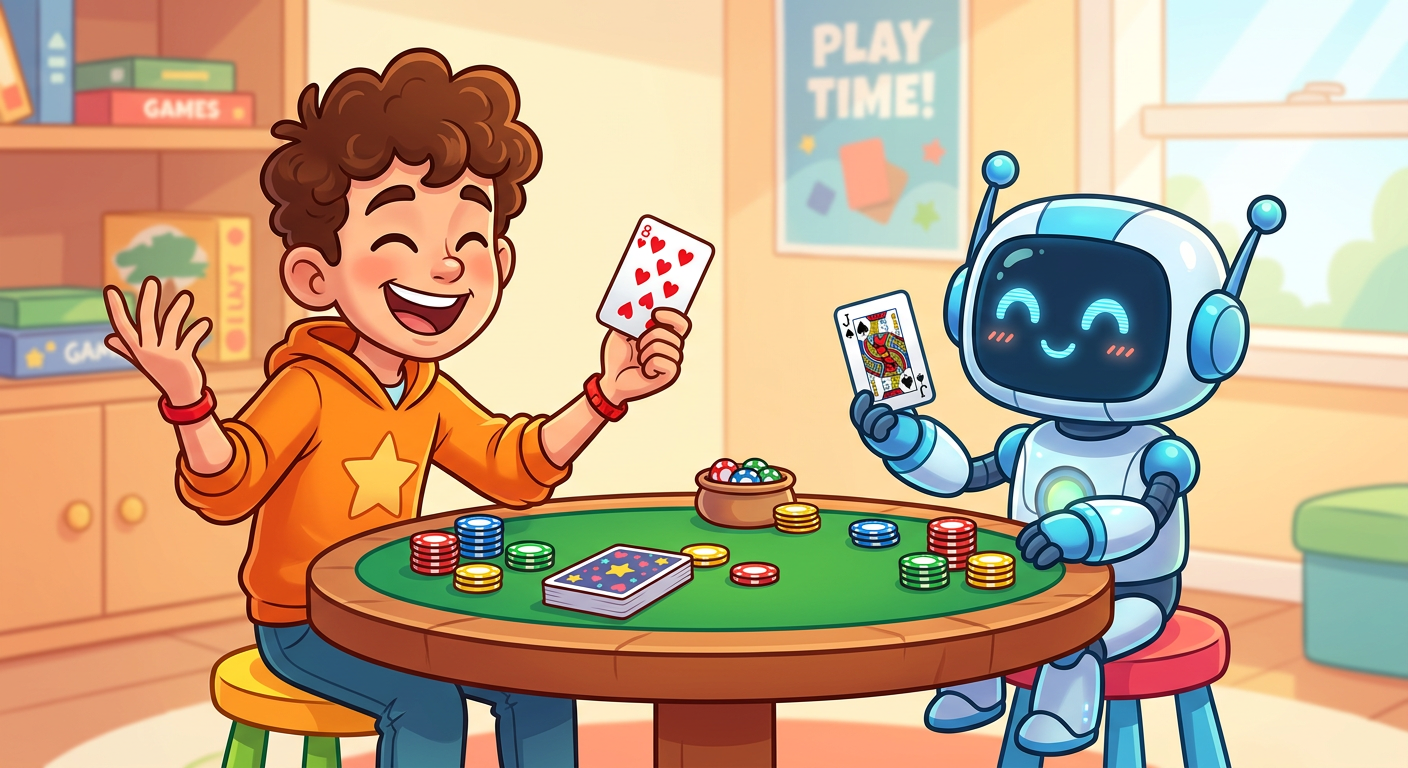
Your game‑making guide is complete — now try out this simple AI‑powered game to see how the steps you learned turn into something fun and playable.
1-Card Stud Poker
Click “Deal” to draw a card. Higher card wins!

Had fun with this little AI game? Perfect — because the next post in the AI Practical Toolkit cranks the creativity up even higher. Bigger ideas, cooler tricks, faster wins. Don’t slow down now… you’re just starting to level up.
Leave a Reply